connector Deployment
WingGate separates the service you connect to from the wing-connector you run inside your own network. This article explains what the connector does, where it runs, what connectivity it needs, and how to operate and troubleshoot it.
Architecture
A WingGate deployment has two sides: the service, and the wing-connector you run on your side.
| Component | Where it runs | What it does |
|---|---|---|
| WingGate | The service, operated as a hosted or self-hosted deployment | Identity, organizations and projects, authorization, session and audit records, and the coordination point for all access. It stores asset credentials encrypted (AES-256-GCM) and never returns them through the API; connectors receive them only through a scoped credential-by-reference exchange. |
| wing-connector | Your network, on a host that can reach your assets | Dials out to WingGate over mutual TLS and proxies Web Terminal, SSH, file and MCP traffic to target hosts. Assets only need to be reachable from this component. |
The wing-connector dials out to WingGate over a mutually authenticated TLS channel: no inbound firewall rule is needed on your side, and your target assets never need a public IP. See Connection model for the full responsibility split.
Deployment topologies
- One host — for personal infrastructure, one wing-connector on a single machine that can reach your assets is all you need. The simplest way to start.
- One per network — for teams, run one wing-connector per network that holds assets (a VPC, a home lab, an office). Each network only needs outbound access to WingGate.
Network requirements
| Connection | Requirement |
|---|---|
| wing-connector to WingGate | Outbound connectivity, authenticated with mTLS on the reverse transport. No inbound firewall rules are required on your side. |
| wing-connector to target hosts | The connector must reach each target host on the ports required by the profiles you enable, typically SSH. SSH host keys are probed and confirmed before first use. |
| Clients to WingGate | SSH clients connect to WingGate's SSH endpoint using the SSH protocol. Web Terminal and in-console file access talk to the service directly. |
| MCP clients | MCP clients connect to the connector's MCP ingress, not to the service. |
Access paths
One path per access method; each terminates where its protocol demands it.
| Client | Connects to | Authentication |
|---|---|---|
| SSH client | WingGate's SSH endpoint | SSH public key, validated by the service |
| SSH Direct | wing-connector's local SSH listener | Public key, password + OTP, or web approval, validated through the service |
| Web Terminal (browser) | WingGate (session stream) | Login session with MFA |
| MCP client | wing-connector's MCP ingress | Project MCP credential |
| File access (in console) | WingGate, served through your session | Active session scope |
Endpoints
Plan three endpoint classes: the service (web console and API over HTTPS), the SSH endpoint (SSH protocol, for your clients), and the connector's outbound mTLS channel — no inbound firewall rule is needed for it. Exact addresses and ports come from your deployment.
Prerequisites
- A Linux host that can reach your target assets on their SSH port.
- Outbound HTTPS connectivity from that host to WingGate; no inbound ports need to be opened.
- A DNS name and valid certificates for WingGate's mTLS endpoint, planned together with your firewall rules.
- Owner or Admin role in the Organization you will bind the connector to.
Install and bind
- Install the connector package on the host using the install script provided by your deployment (the one-line command in the "Add an executor" dialog on the Executors page; auto-detects x86_64/aarch64, requires root or sudo). On systemd hosts the connector runs as a systemd service; non-systemd hosts follow the manual-run hint printed by the script.
- Configure the connector with WingGate's mTLS endpoint address.
- Start the service and confirm it is running:
systemctl status winggate-connector-entry
- In the web console (the "Executors" page in the navigation), bind the connector in your Organization. Binding issues the connector its own credential, which it uses to authenticate to WingGate.
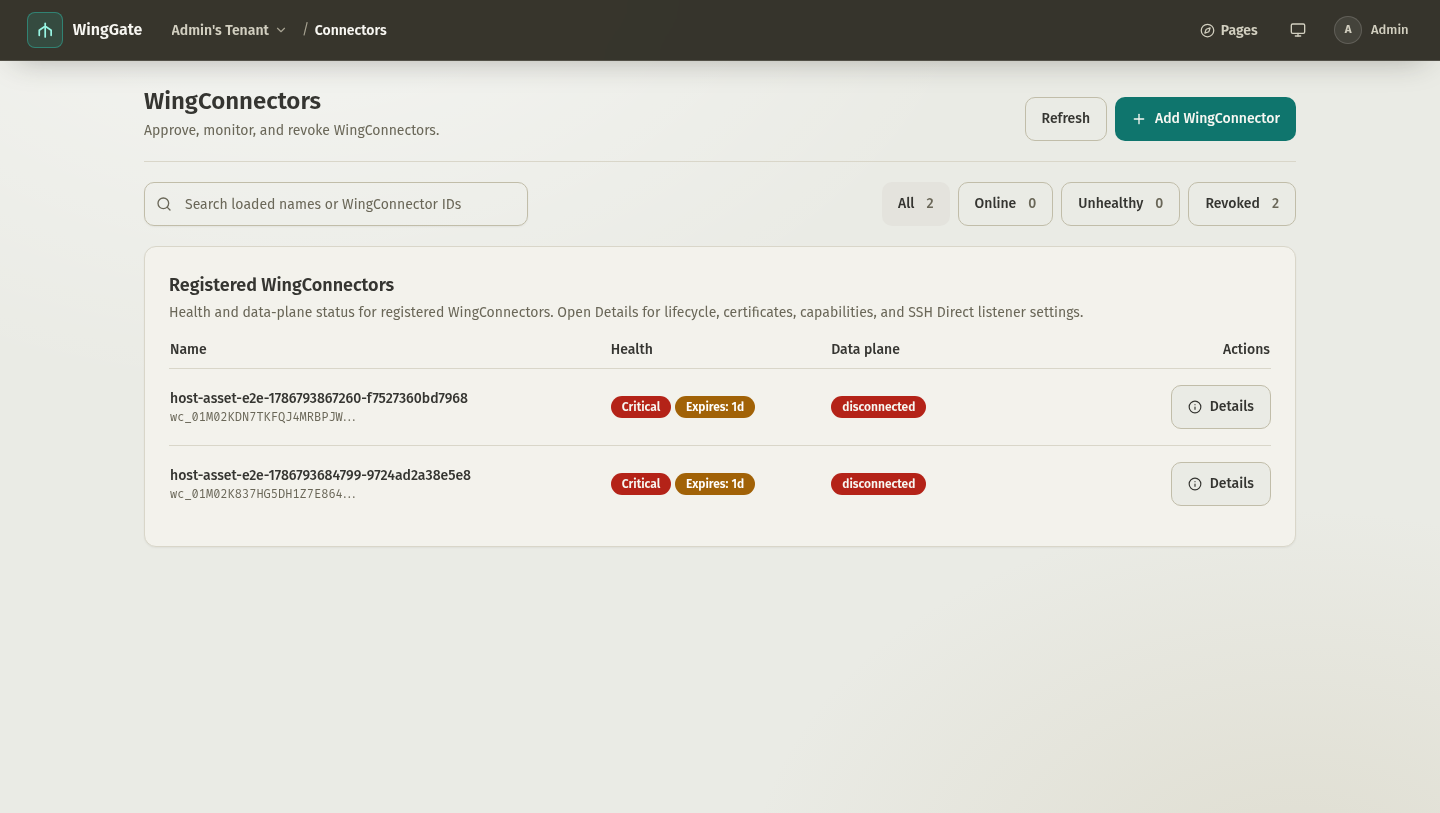
Expected result
The connector shows as online in your Organization's connector list. From this point you can register assets behind it and attach connection profiles, then grant access through a Project.
Optional: SSH Direct listener
The connector can expose a local SSH listener (SSH Direct) so your own SSH client can reach your assets by connecting directly to the connector host, instead of to WingGate's SSH endpoint. Ownership differs by role:
- wing-connector's own listener: disabled by default, configured per connector.
- WingGate's SSH entry: not a per-connector setting. WingGate supplies a default endpoint on first install (canonical default
0.0.0.0:9022; this deployment uses22), it does not appear in the console's connector list, and there is no supported console update path today.
Per-connector configuration:
- In the web console, open the connector's SSH Direct settings.
- Enable the listener and choose a listen address (
127.0.0.1:9022for this host only, or0.0.0.0:9022to accept on all interfaces). Exposing the listener beyond loopback additionally requires the connector'sssh_direct.allowNonLoopbacksetting. The listener's exposure follows the connector host's firewall. - Choose at least one authentication method: public key, password + OTP, or web approval.
- The connector authenticates you through WingGate and lists only assets in Projects you are granted that support the SSH client entry.
SSH Direct sessions run through the same Session, grant and audit boundary as every other entrypoint — see Identity and access.
Layered troubleshooting
When access fails, walk the path in order — each layer has a distinct failure signature:
- WingGate service — can you sign in to the Web Console and see the organization? If not, the problem is account or service-side, before anything in your network is involved.
- wing-connector — does the console show it online and bound to the right organization? An offline connector breaks every access method for its assets at once.
- Target host — can the wing-connector reach the host, and does the SSH host key match the confirmed one? Host key mismatches and refused connections surface at this layer.
The audit and troubleshooting article covers each layer in detail, including connector logs and upgrade procedures.
Upgrade and rollback boundaries
- Upgrades follow this order: WingGate service first, then connector components. If you operate manually, keep the same order.
- During a WingGate service restart, active sessions and connector shells are preserved and the front end reconnects; plan upgrades accordingly.
- Rollback means restoring the previous WingGate service and connector binaries together with your configuration; the service's storage and its backups stay inside your trust boundary, so you control what is restored.
When the connector is offline
An offline connector means WingGate cannot reach the assets behind it; existing sessions to those assets will fail. Check in this order:
- Outbound connectivity from the connector host to WingGate (DNS, firewall, proxy).
- The connector service status and logs on the host (
journalctl -u winggate-connector-entry). - Whether the connector credential is still valid; rotate it like any other machine credential if in doubt.