Using the Web Console
The Web Console is the browser-based management surface of WingGate. It talks to the WingGate service only — it never touches the database, the connectors, or the data plane directly. This article maps the console's main areas and the operations you can perform in each.
Prerequisites
- A signed-in WingGate account with MFA enrollment completed (TOTP or passkey).
- An Organization you belong to. A new account gets a default personal Organization with a default Project; other memberships come through invitations.
- Owner or Admin role for management operations; the console marks which steps require it.
Sign in and choose a context
Sign in at WingGate's web address. After sign-in you land in the console and pick an Organization from the context picker. Every console page is scoped to that Organization — assets, members, connectors and audit are all organization-level resources. Projects inside the Organization are the authorization contexts where sessions and access grants live.
Organization work areas
The Organization home summarizes members, Projects and routes. From there you reach:
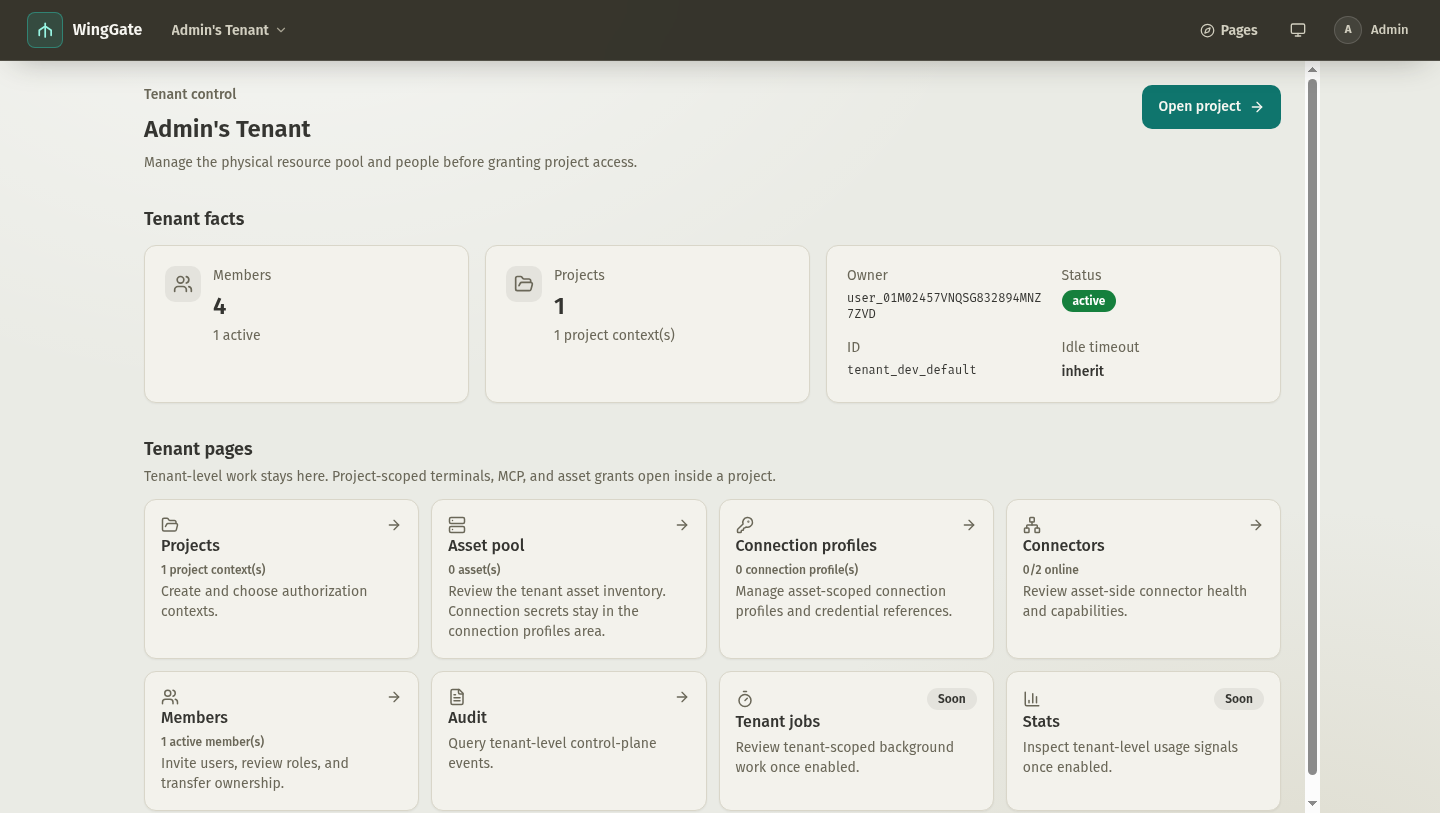
- Asset pool — the organization-owned inventory: SSH hosts, bound browsers, and SMB / WebDAV / S3 file backends, with type-specific readiness (WebDAV needs a confirmed server fingerprint first). Connection profiles and connection secrets are managed in their own area, not on the asset pool page; a file backend has no connection-profile layer — its target and credential reference live on the asset itself.
- Connection profiles — asset-scoped connection configurations. A profile binds a connection secret to a target SSH user on one specific asset.
- Connectors (labelled "Executors" in the console navigation) — the endpoints connected to this Organization: registration, health, and data-plane status for wing-connectors and browser extensions.
- Members — invite users, review join requests, review roles, and transfer ownership.
- Audit — the organization-level control-plane event stream; see the Audit and troubleshooting article.
- Jobs — on-demand background work such as Runner installation: an install job is created the first time a Runner-only operation runs, and the console shows its progress and retries.
Add an asset
From the Asset pool page, Add asset offers these paths:
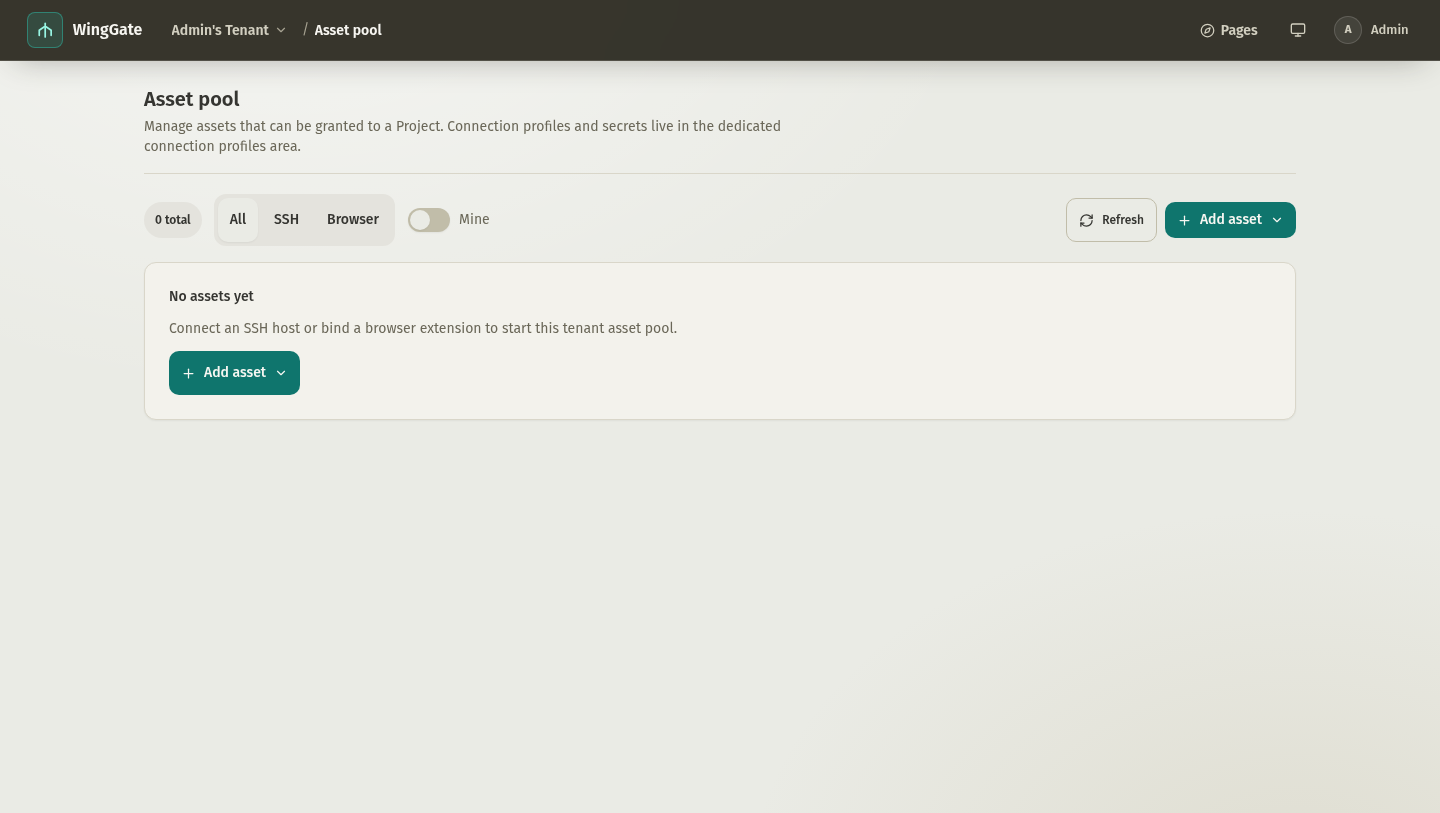
- Connect host registers one SSH host: enter the host address, create or select a connection secret (SSH private key or password), and bind it as a connection profile. The secret is write-only after creation.
- Bind browser explains the WingGate browser-extension device-code flow. The console does not create a browser asset from this form; the extension does, after you approve the short code.
- Connect SMB / WebDAV / S3 registers an SMB3 share, a WebDAV site or an S3-compatible object store, with its target and credential reference. These kinds create no connection profile; their file operations run from an AI agent through the MCP file tools, and the console offers no file browser.
Project work areas
A Project is the logical context where assets become reachable:
- Project overview — access grants (members holding a coarse grant for this Project's full data plane), project assets, and entry points to core features like Terminal and MCP.
- Terminal sessions — start shells on authorized assets and inspect sessions; see the Web Terminal article.
- MCP — maintain the Project's MCP configuration and credentials; see Setting up MCP access.
Account areas
Your account pages hold identity and sign-in material:
- SSH keys — register the public keys your SSH client uses against WingGate's SSH endpoint; see Connecting with your SSH client.
- Security — MFA factors (TOTP / passkey), external identity providers, and reauthentication material.
Safety boundaries
- One-time secrets (connection secrets, MCP credentials) are shown only at creation and must be copied immediately.
- Dangerous actions — deleting an asset, revoking a profile, transferring ownership — require confirmation and, where applicable, reauthentication.
- Deleting a resource never cascades silently: the console asks you to review dependent grants, sessions and policy references first. Deleting a browser asset does not unbind the extension unless you opt in to revoke its identity.
Expected result
You can manage the full lifecycle from the browser: bind connectors, connect hosts or file backends, grant project access, open terminal sessions, and verify everything in Audit.
Troubleshooting
- Console says "connector offline" for an asset — check the connector serving the asset (see connectors).
- Host key not confirmed — probe and confirm the SSH host key before opening a session; see Credential protection for the mismatch boundary.
- Not authorized — the attempted operation is outside your Project access grant or Organization role; review the grant with an Owner or Admin.
- Secret lost — secrets are never recoverable from the console by design; rotate the credential and update the affected connection profile or MCP client.