Teams, Organizations and Projects
WingGate separates who manages what from who can reach what. Organization membership and roles are the management boundary; a Project access grant is the only thing that grants data-plane access to an asset. This article explains both layers and how members and access are administered.
Two layers of control
- Organization — the boundary for members and the physical resource pool. Assets, connectors, credentials and connection profiles belong to the Organization. Members of the Organization can work inside it according to their role.
- Project — a logical working context inside the Organization. Projects do not own physical assets; they carry the access grants that let members open sessions. Create one Project per team or environment so grants stay narrow.
Fixed role matrix
Management actions use exactly three roles — there is no configurable authorization rule engine:
- Owner — full organization control: everything Admins can do, plus granting the Admin role. Only an explicit ownership transfer can change the Owner.
- Admin — manages members, Projects, connectors, assets and grants. Admins cannot invite, approve, create or update other Admins or Owners, and an Admin invitation grants the Member role only.
- Member — can use granted access to open sessions; cannot perform the management steps above.
Roles govern the management plane only. A role never implies data-plane access: even an Owner must hold a valid Project access grant to open a session on an asset.
Manage members
- Open your Organization and go to Members.
- Invite a user — resolve the target user by login name or user id, pick the initial role, and create the invitation. Only Owner/Admin can create or cancel invitations; the invited user must accept it themselves.
- Join requests — users can submit a self-service request to join the Organization. Requests stay pending until an Owner/Admin approves or rejects them, or until they expire.
- Pending invitations and join requests are shown with decision context (organization, inviter, role, expiry) — not just internal ids.
Removing a member does not cascade: project access and active workflows must be reviewed separately. Owner changes are only possible through an explicit ownership transfer.
Grant access in a Project
- Open the Project (it lands on the Project overview page).
- Choose an organization member.
- Confirm once to create the coarse Project access grant for
(project, user).
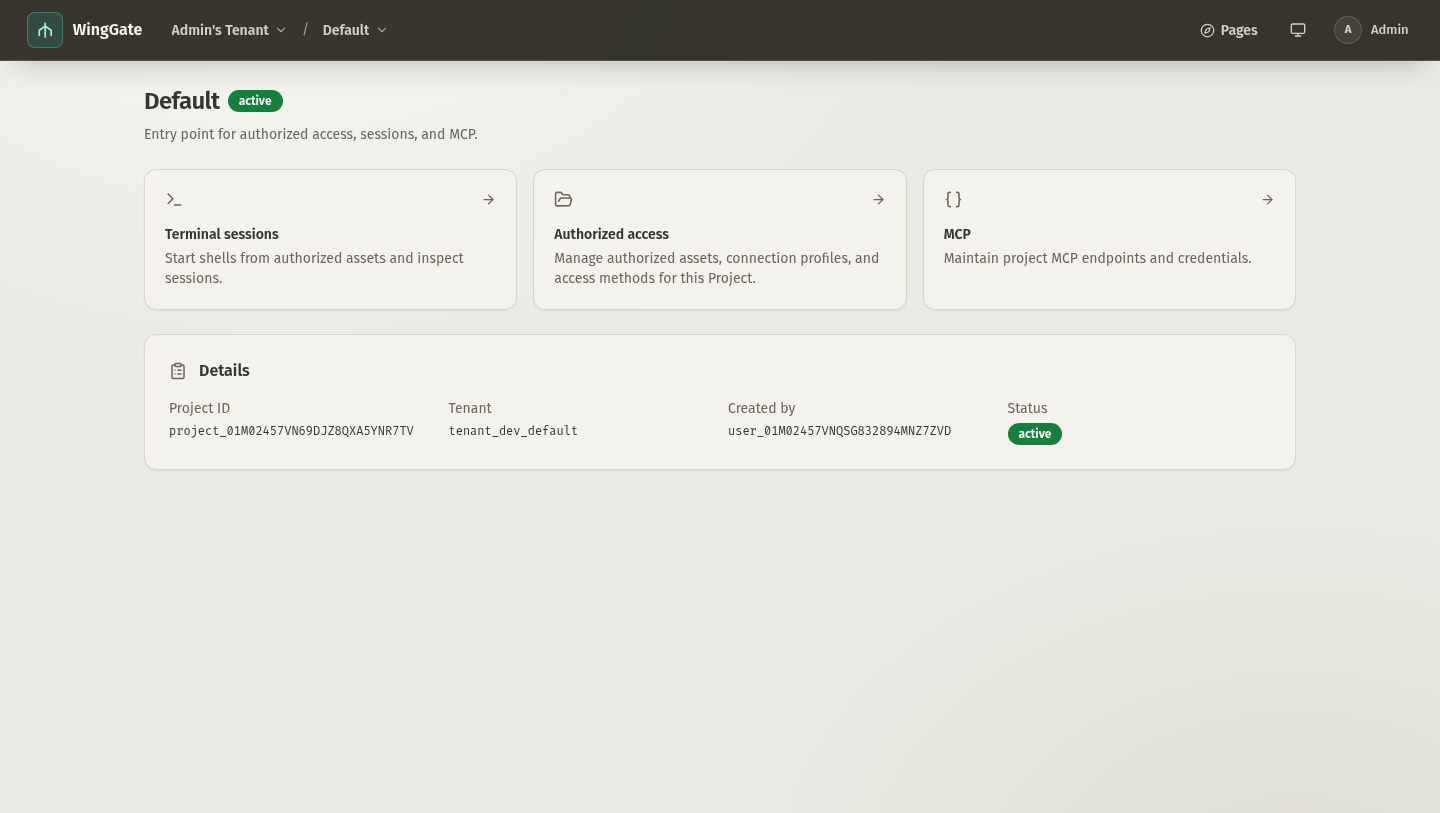
The grant covers that Project's full data plane. Finer MCP limits come from Project/asset MCP configuration, not from the grant. Revoking a grant takes effect on the next authorization check.
Boundaries
- Deleting resources never cascades automatically; dependencies are returned for review before deletion.
- Physical resources stay organization-scoped. A Project is a view over them, never a pool of its own.
Troubleshooting
- A member reports "not authorized" — they have no active grant for this Project, the asset is not in the Project or not ready, or (for MCP) the Project/asset MCP configuration does not allow the tool.
- Invitation is missing — invitations can expire or be canceled by an Owner/Admin; ask them to create a new one.
- Cannot approve a join request — only Owner/Admin can; check your role in this Organization.
- Cannot open a terminal despite being Owner — membership and role do not grant data-plane access. Create a Project access grant for that member.