Working in the Web Terminal
The Web Terminal runs in your browser and shares the exact same authorization and audit boundary as SSH client access: a session opens only when the member has an active Project access grant and the asset is in that Project and ready. Every session is recorded in the Organization audit. No browser extension is required.
Prerequisites
- An active Project access grant for the member, and a Project asset that supports the Web Terminal entrypoint.
- The asset's SSH host key confirmed.
- An online connector that can reach the asset.
- A valid connection profile (credential) bound to the asset.
The console's readiness indicators show which of these is missing before you can open a session.
Open a session
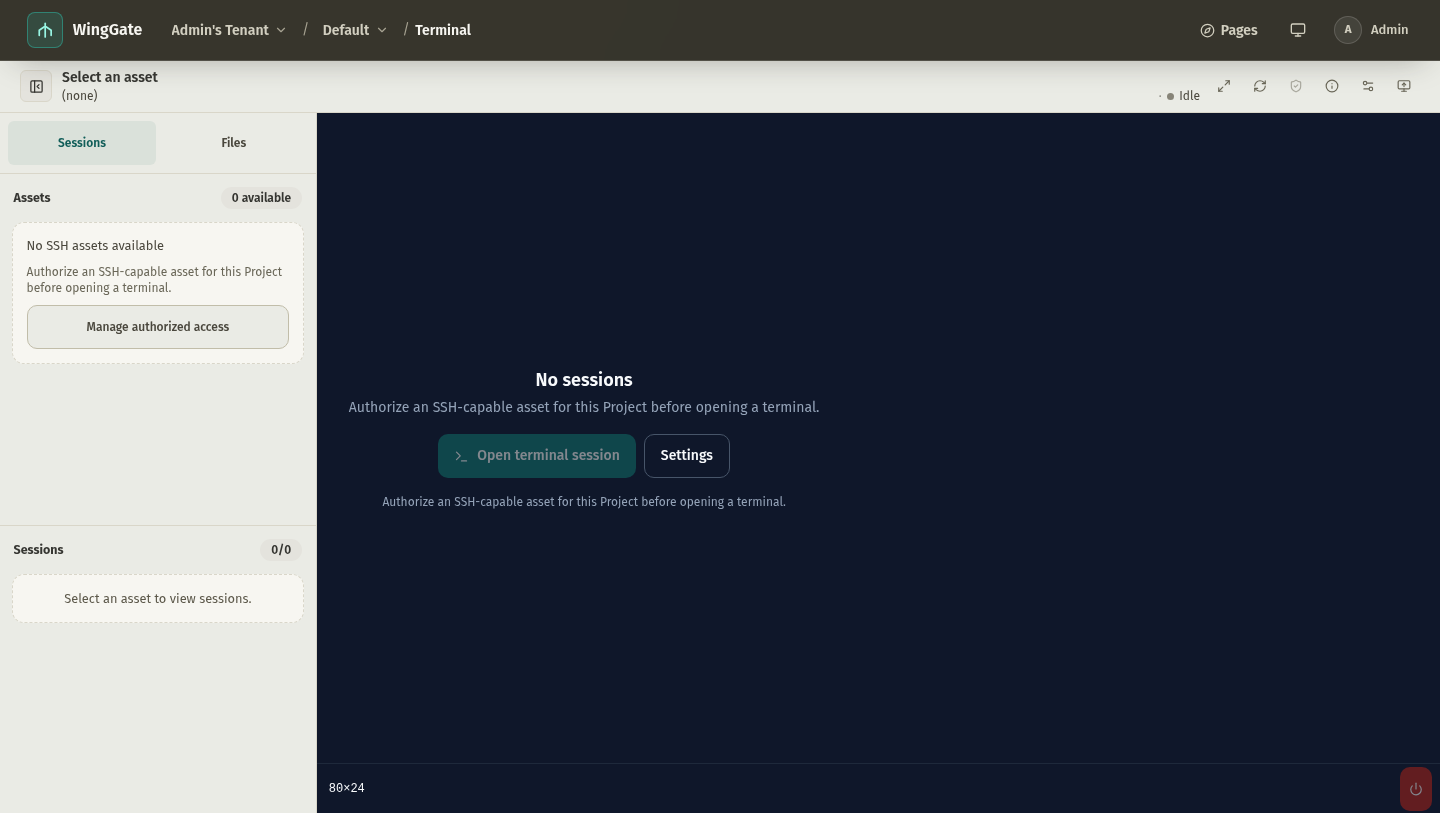
- In the web console, open your Project and go to Terminal sessions.
- Select the asset, then confirm the connection profile if more than one is available.
- Open the session. A shell starts on the target host and the session appears in the audit view.
Session modes
The asset's session mode determines how the remote shell is managed:
- Direct shell — starts a remote shell process directly. bash, zsh and fish report their working directory over OSC 7, which lets the console's file tree follow your
cd. - Terminal multiplexer — tmux, zellij, herdr or screen keep a named remote session, so a new WingGate session can re-enter the same remote terminal. Directory follow is disabled in this mode; the remote host must have the selected tool installed.
- Custom shell — uses a configured custom shell path; directory follow only works when the binary basename is bash, zsh or fish.
Session lifecycle
- Sessions are closed when the client disconnects, when an Owner or Admin closes them, or when they idle past the session's idle timeout.
- The effective idle timeout is the strictest of the session request, the Project/Organization policy, and the system default; you can only tighten it.
- A session closed by idle timeout is recorded as
idle_closed— the running terminal stream is disconnected and cannot be resumed from the browser view.
File tree and Git
The console keeps a file panel next to the terminal:
- The file tree follows the shell's reported working directory for direct-shell sessions and lets you browse and edit files on the asset.
- The Git view shows the repository status at the shell's working directory.
Basic file operations (list, read, write, edit, mkdir, rename, delete) run over zero-install SFTP. Git inspection, file.find/file.grep and runtime snapshots are Runner-only capabilities: the first use creates a dedicated installation Job on the connector, the console shows installing state, and the operation is retried automatically once the Runner is verified. See Working with files for the full boundary.
The file panel's Search dialog has two modes: Content runs a literal text search (file.grep) and Path matches file paths by glob (file.find, e.g. src/*.rs).
Interface tips
- Zen mode hides the surrounding console chrome for focused work.
- Ctrl+B toggles the asset/session rail; Ctrl+Shift+I toggles the monitor view.
- Use the details panel to inspect the current session, its entrypoint, and its connection profile.
Troubleshooting
- "connector offline" — the asset's connector is unreachable; sessions to that asset cannot open. See connectors.
- "Host key not confirmed" — probe and confirm the host key first; on a mismatch after a rebuild, verify the cause out of band before re-confirming. See Credential protection.
- "Not authorized" — the member has no active grant for this Project, or the asset is not in the Project or not ready; ask an Owner or Admin to review it.
- Session closed as idle — reopen a new session; if the timeout feels wrong, an Owner or Admin can review the Project or Organization idle timeout.
- Runner installing — the first Git inspection,
file.find, orfile.grepaction triggered an on-demand Runner install; wait for the Job to finish — the operation retries automatically.