Setting Up MCP Access
WingGate can expose restricted file, command, and browser capabilities to AI agents over MCP (Model Context Protocol). Access is bound to a Project: a credential can only use the tool groups enabled by the Project and asset MCP configuration.
Prerequisites
- A Project with assets granted to it (see Getting started).
- An external MCP client that supports connecting to a remote MCP server.
- Owner or Admin role in the Organization to create MCP credentials.
Create an MCP credential
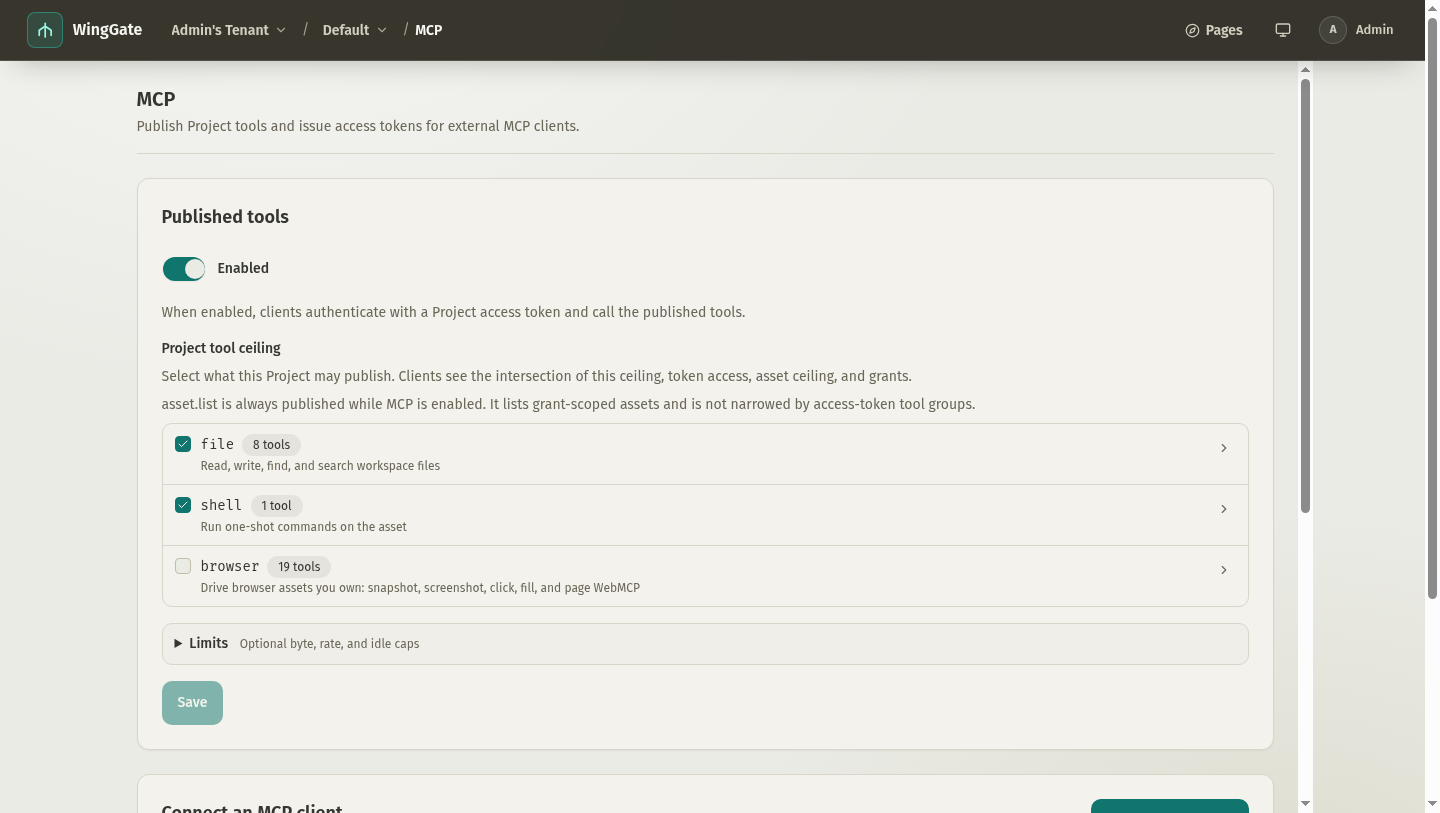
- In the web console, open your Project's MCP area and create a credential.
- Copy the credential immediately. The secret value is shown only once at creation; it is never returned by list or detail responses afterwards, and it never appears in logs or audit entries.
- Store it in your MCP client's secret storage.
Configure your MCP client
Add WingGate as an MCP server in your client, providing the endpoint and the credential. The client must send the credential with every request; a missing or wrong credential is rejected as an authentication failure. The concrete tool surface is announced by the endpoint during session setup; the API and protocol reference describes the tool groups and capability boundaries.
Every client uses the same connection details:
- Endpoint URL — open your Project's MCP area in the web console and copy the displayed endpoint URL.
- Access token — the one-time secret shown when you create an MCP credential, sent as an
Authorization: Bearer <token>request header.
Claude Code
claude mcp add --transport http winggate <ENDPOINT> \
  --header "Authorization: Bearer <TOKEN>"
This writes a local-scoped entry for the current project by default; --scope user makes it available in every project, and --scope project writes .mcp.json for team sharing. Check the connection with claude mcp list.
Codex CLI
export WINGGATE_MCP_TOKEN=<TOKEN>
codex mcp add winggate --url <ENDPOINT> --bearer-token-env-var WINGGATE_MCP_TOKEN
Codex stores only the environment variable name, never the token value. Equivalent hand-written config (~/.codex/config.toml):
[mcp_servers.winggate]
url = "<ENDPOINT>"
bearer_token_env_var = "WINGGATE_MCP_TOKEN"
Cursor
Create .cursor/mcp.json in your project root (or ~/.cursor/mcp.json for all projects):
{
  "mcpServers": {
    "winggate": {
      "url": "<ENDPOINT>",
      "headers": { "Authorization": "Bearer <TOKEN>" }
    }
  }
}
After saving, confirm the connection status in Cursor Settings → MCP.
pi
pi has no built-in MCP support; install a community extension first:
pi install npm:pi-mcp-adapter
Then add the server in ~/.pi/agent/mcp.json (global) or .pi/mcp.json (project):
{
  "mcpServers": {
    "winggate": {
      "url": "<ENDPOINT>",
      "description": "Remote assets of your project: list them with asset.list, then read/write/search files and run commands through this server rather than a local ssh/scp or your own Playwright browser.",
      "headers": { "Authorization": "Bearer <TOKEN>" }
    }
  }
}
Restart pi and check the connection with /mcp.
DeepSeek Harness
Mount the built-in MCP client plugin in the harness's cordis.yml:
- id: mcp-client
  config:
    transport: streamable-http
    serverName: winggate
    url: <ENDPOINT>
    headers:
      Authorization: Bearer <TOKEN>
Tools register under the mcp__winggate__* naming. Alternatively, install the dsh-mcp-manager plugin and add the server graphically on the Settings → MCP page.
Capability boundaries
- MCP capabilities are restricted file, command, and browser operations on assets in the Project.
asset.listand the SSH entry publish project assets only: creating from the project's asset page also adds the asset to that Project, while an asset created on the organization asset page has to be added from that Project's assets page with "Add asset" — otherwise it never appears in those entrances and a direct call by id is rejected.- Browser capabilities apply only to browser assets you own; sensitive writes (click/fill/…) and page WebMCP calls also require local confirmation in the extension.
- When MCP covers the operation, the tool descriptions and handshake steer agents to act on a listed asset through this server rather than a local ssh/scp/shell or a Playwright/CDP browser of their own: only this path carries the asset's authorization, audit, and credentials (for browser assets, the local user's signed-in session too).
- The permission set of the MCP entry is fixed; no credential or client can widen it.
- Every MCP operation is recorded in the Organization audit, so agent activity is attributable like any human session.
Expected result
Your client lists WingGate's tools, and calls allowed by the MCP configuration succeed and appear in the audit view.
Troubleshooting
- Authentication failure — verify the credential value and that the client sends it on every request. Remember the secret is only shown once; if you lost it, create a new credential and revoke the old one.
- Permission denied — the member has no active grant, or the Project or asset MCP configuration does not allow the tool. Ask an Owner or Admin to review the grant and MCP settings.
- Asset unreachable — check that the connector serving the asset is online; MCP operations travel the same data plane as terminal sessions.